This guide walks you through the fastest path to a working MCPJungle setup: a local gateway running in Docker, a registered MCP server, and Claude Desktop connected to it.
Before you start, verify the MCPJungle server is reachable after step 1 by running:
curl http://localhost:8080/health
The server is ready when this returns a 200 response.
1

Start the gateway server

Download the official Docker Compose file and start the MCPJungle server with a persistent Postgres database:
curl -O https://raw.githubusercontent.com/mcpjungle/MCPJungle/refs/heads/main/docker-compose.yaml
docker compose up -d
This starts MCPJungle on port 8080. The Docker Compose file is optimized for local development — the server runs in development mode, which requires no additional initialization.
If you plan to register stdio-based MCP servers that rely on npx or uvx (such as filesystem or github), use the stdio image instead:
MCPJUNGLE_IMAGE_TAG=latest-stdio docker compose up -d
The stdio image is larger but includes all the tooling needed to run those servers inside the container.
2

Install the CLI

The mcpjungle CLI is how you register servers, manage tools, and configure the gateway from your local machine.Install it with Homebrew:
brew install mcpjungle/mcpjungle/mcpjungle
Verify the installation:
mcpjungle version
For other installation methods, see the Installation page.
3

Register an MCP server

Add your first MCP server to the gateway. This example registers context7, a remote MCP server that provides up-to-date library documentation:
mcpjungle register --name context7 --url https://mcp.context7.com/mcp
MCPJungle connects to the server, loads its tools, and makes them available through the gateway. You can confirm the tools are registered:
mcpjungle list tools
4

Connect Claude Desktop

Open your Claude Desktop configuration file and add MCPJungle as an MCP server. Claude connects to the MCPJungle gateway over HTTP using the mcp-remote bridge:
{
  "mcpServers": {
    "mcpjungle": {
      "command": "npx",
      "args": [
        "mcp-remote",
        "http://localhost:8080/mcp",
        "--allow-http"
      ]
    }
  }
}
Restart Claude Desktop to apply the configuration. Once connected, Claude can call any tool registered in MCPJungle. Try asking it:
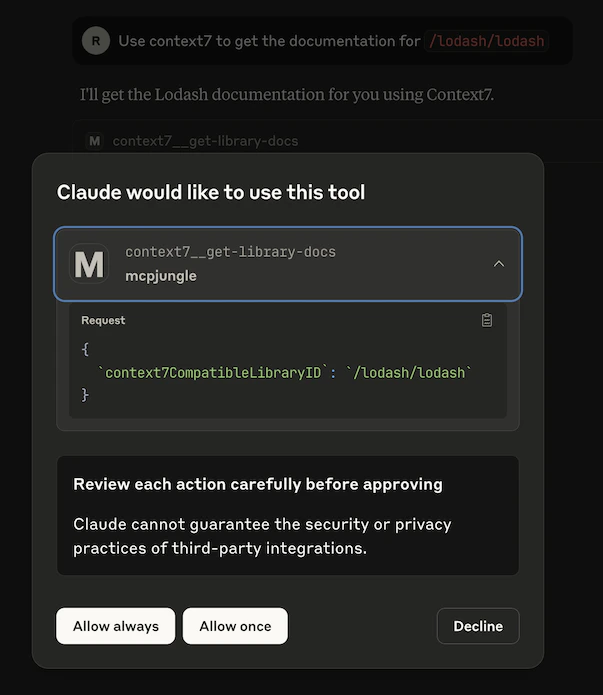
Use context7 to get the documentation for /lodash/lodash
Claude will call the context7__get-library-docs tool through MCPJungle and return the Lodash documentation.

Next steps

Register more servers

Add HTTP and STDIO-based MCP servers to your gateway.

Connect other clients

Configure Cursor, Copilot, or a custom agent to use MCPJungle.

Tool Groups

Expose curated subsets of tools to specific agents or clients.

Deploy to production

Run MCPJungle in enterprise mode with access control and observability.