> ## Documentation Index
> Fetch the complete documentation index at: https://docs.mcpjungle.com/llms.txt
> Use this file to discover all available pages before exploring further.
# Quickstart
> Start Mcpjungle gateway, register your first MCP server, and connect a client — all in under 5 minutes.
This quickstart guide will show you how to:
1. Start the mcpjungle server locally using `docker compose`
2. Add the [context7](https://context7.com/) MCP server in mcpjungle
3. Connect your Claude Desktop to mcpjungle to access tools
## Start the server
Fetch the `docker-compose.yaml` and start the mcpjungle server:
```bash theme={null}
curl -O https://raw.githubusercontent.com/mcpjungle/MCPJungle/refs/heads/main/docker-compose.yaml
docker compose up -d
```
This exposes mcpjungle's streamable http mcp server at `http://localhost:8080/mcp` by default.
## Add an MCP server
1. Download the `mcpjungle` CLI on your local machine either using brew or directly from the [Releases Page](https://github.com/mcpjungle/MCPJungle/releases).
```bash theme={null}
brew install mcpjungle/mcpjungle/mcpjungle
```
2. Add the context7 MCP server to mcpjungle using the CLI:
```bash theme={null}
mcpjungle register --name context7 --url https://mcp.context7.com/mcp
```
You should see output similar to this:

MCPJungle also includes a Dashboard UI at `http://localhost:8080/`.
The dashboard is currently in Beta.
## Connect to mcpjungle
In your Claude Desktop, add the configuration for mcpjungle MCP server:
```json theme={null}
{
"mcpServers": {
"mcpjungle": {
"command": "npx",
"args": [
"mcp-remote",
"http://localhost:8080/mcp",
"--allow-http"
]
}
}
}
```
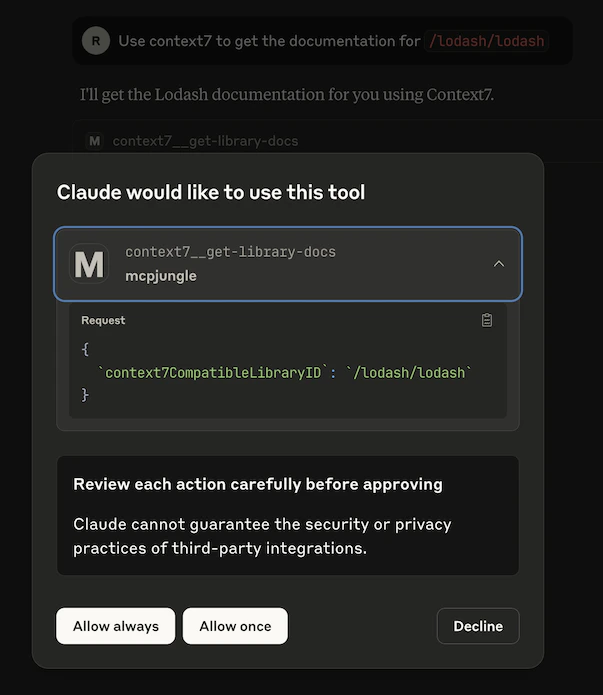
Once you have added the configuration, try asking Claude something simple:
```text theme={null}
Use context7 to get the documentation for `/lodash/lodash`
```
Claude will then attempt to call the `context7__get-library-docs` tool via Mcpjungle, which will return the documentation for the Lodash library.
You now have a working MCP setup with a single unified endpoint.
## Next steps
Add HTTP and STDIO-based MCP servers to your gateway.
Configure Cursor, Copilot, or a custom agent to use Mcpjungle.
Expose curated subsets of tools to specific agents or clients.
Run Mcpjungle in enterprise mode with access control and observability.