> ## Documentation Index
> Fetch the complete documentation index at: https://docs.mcpjungle.com/llms.txt
> Use this file to discover all available pages before exploring further.
# Mcpjungle Documentation
> Run all your MCP servers behind one endpoint
Mcpjungle is a self-hosted MCP gateway for developers and teams who want to manage multiple MCP servers without scattered client configurations, duplicated setup, or inconsistent access control.
Use it **locally** to keep your personal MCP setup clean, or run it as **shared infrastructure** for a team with centralized discovery, access control, and observability.
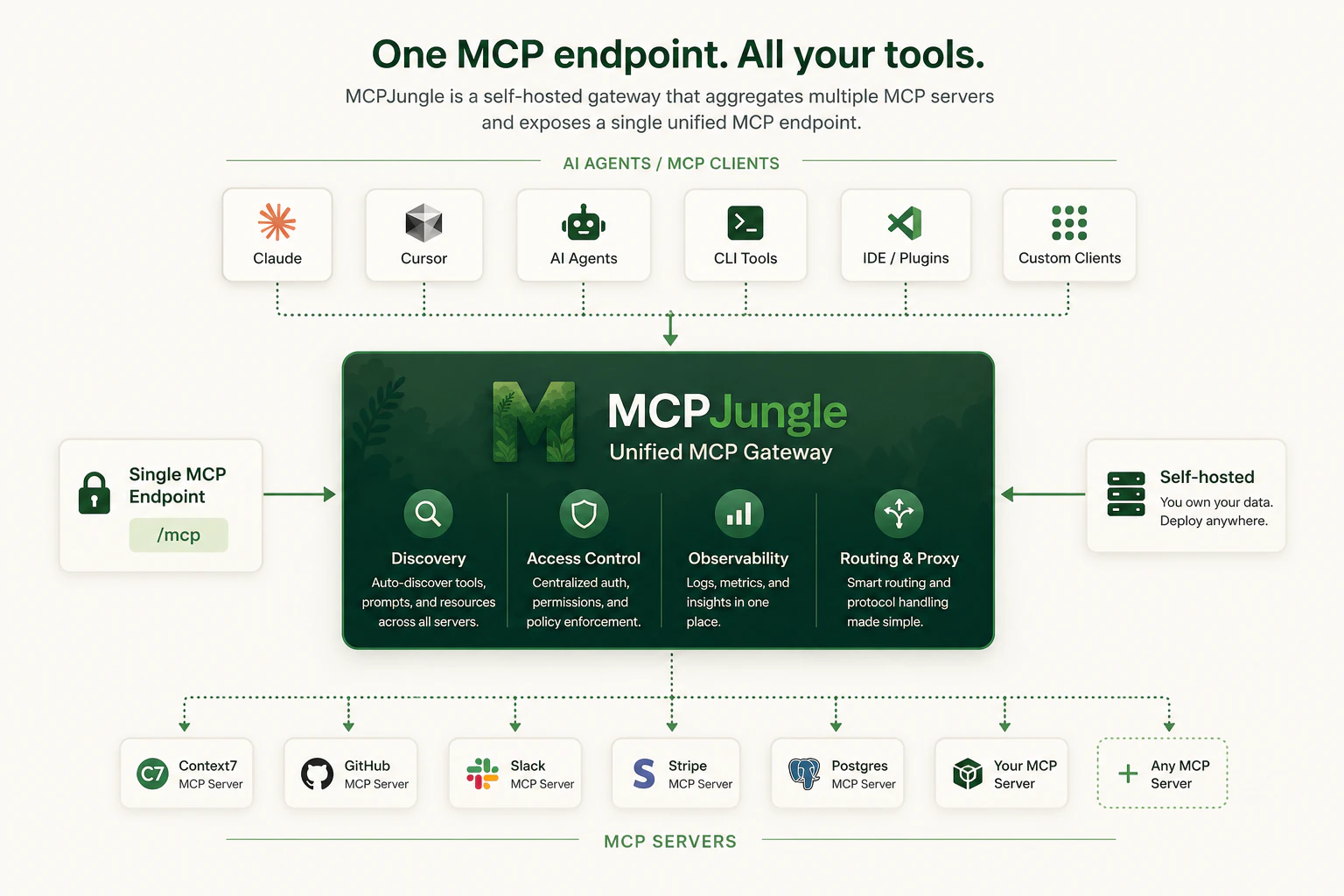
Instead of wiring every MCP server into every AI client, register your servers once in Mcpjungle and let Claude, Cursor, Codex, or your own agents connect to a single MCP endpoint.
## Use Cases
Mcpjungle is primarily built for:
* **Developers** who want one clean local MCP endpoint instead of per-client server configuration.
* **Teams** who want shared MCP infrastructure with centralized discovery, access control, and observability.
Start the gateway, add your first MCP server and connect Claude - in under 5 minutes.
Learn how the gateway, CLI, servers, MCP and enterprise features fit together.
View transport support, MCP surface coverage, authentication, integrations, and operational support levels.
Install the CLI locally and choose the right runtime path for your gateway deployment.
AI agents can also access the mcpjungle documentation using MCP - `https://docs.mcpjungle.com/mcp`.
## Why Mcpjungle?
MCP is powerful, but managing many MCP servers gets messy fast.
Without a gateway:
* Every client needs its own MCP server configuration.
* Tools, prompts, and resources are scattered across different servers.
* Access control is duplicated or missing.
* Teams have no shared view of available MCP tools.
* Local setups become hard to reproduce.
Mcpjungle gives you a single control point:
Register your MCP servers once. Every AI client and agent connects to a single `/mcp` endpoint.
Run Mcpjungle locally for yourself or on your own infrastructure for a team. Your MCP traffic, tool access, and operational data stay inside infrastructure you control.
Expose curated subsets of tools so each client only sees the tools it actually needs.
In enterprise mode, issue per-client tokens and explicitly control which MCP servers each client can reach.
Start with a local setup. Scale to a shared team gateway when you need it.
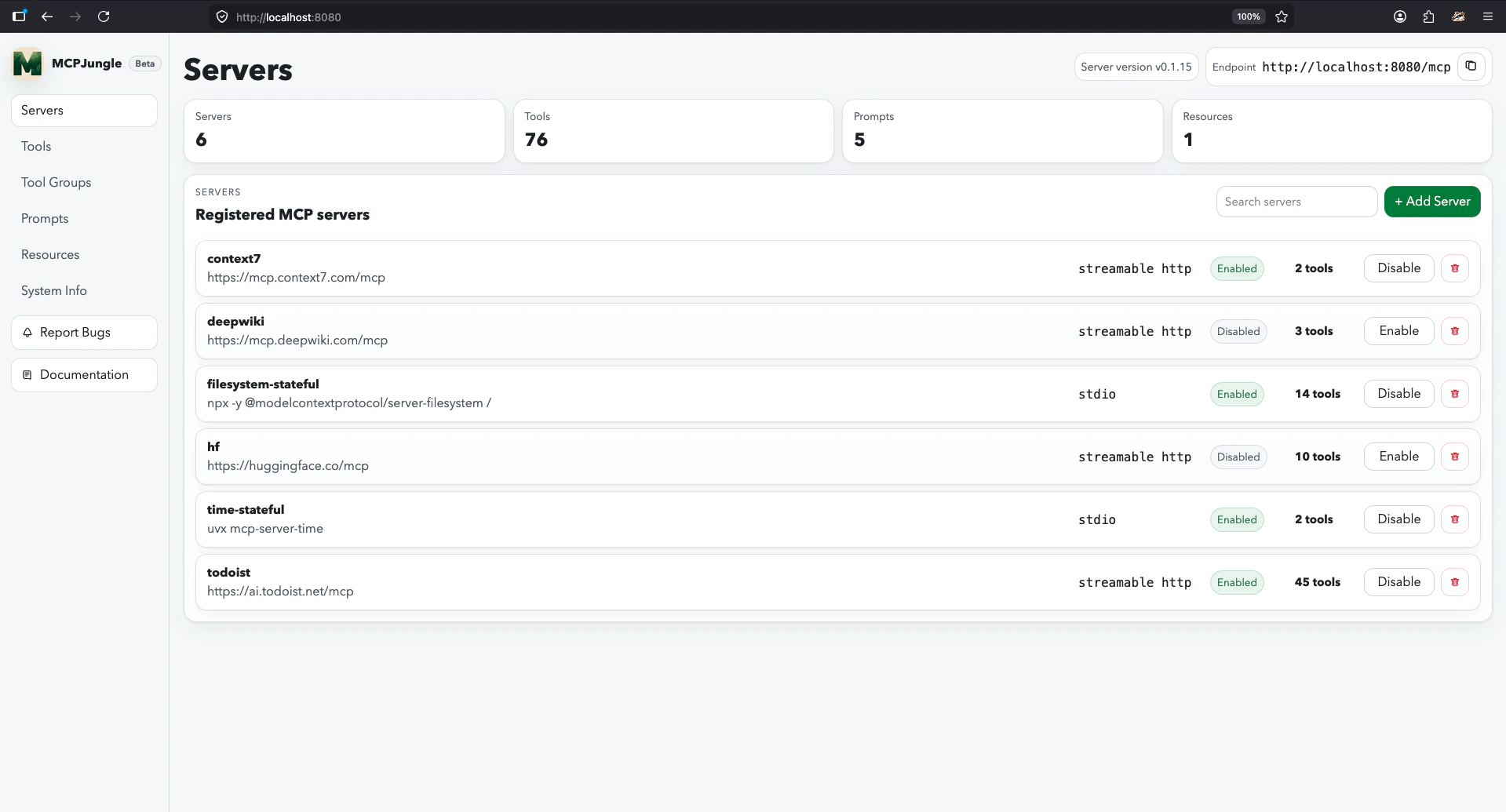 ## Quickstart
Pull the Docker Compose file and start Mcpjungle with a persistent Postgres database:
```bash theme={null}
curl -O https://raw.githubusercontent.com/mcpjungle/MCPJungle/refs/heads/main/docker-compose.yaml
docker compose up -d
```
Follow the full quickstart to install the CLI, register your first MCP server, and connect your AI client.
## Explore the docs
Register remote and STDIO-based MCP servers, curate what they expose, and manage prompts and groups.
Run Mcpjungle in local or enterprise mode with the right database, runtime, and observability setup.
Understand enterprise mode, upstream authentication, client tokens, and user access.
Use the CLI, HTTP API, config files, and environment variables with exact command and schema details.
See what's being prioritized.
## Quickstart
Pull the Docker Compose file and start Mcpjungle with a persistent Postgres database:
```bash theme={null}
curl -O https://raw.githubusercontent.com/mcpjungle/MCPJungle/refs/heads/main/docker-compose.yaml
docker compose up -d
```
Follow the full quickstart to install the CLI, register your first MCP server, and connect your AI client.
## Explore the docs
Register remote and STDIO-based MCP servers, curate what they expose, and manage prompts and groups.
Run Mcpjungle in local or enterprise mode with the right database, runtime, and observability setup.
Understand enterprise mode, upstream authentication, client tokens, and user access.
Use the CLI, HTTP API, config files, and environment variables with exact command and schema details.
See what's being prioritized.